Sincronització del correu i del xat al mòbil
n iPhone (iOS):
Option A (Using the official Gmail app)
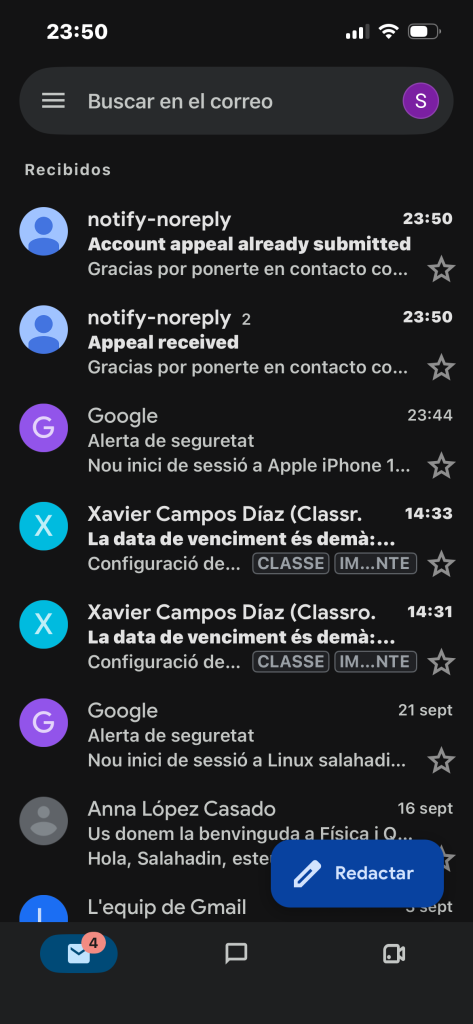
Download and install Gmail from the App Store.
Open the app and log in to the Google computer.
Allow the notifications when the app is on its own.
Part 2: Activate and Integrate Xat (Google Xat i Meet)
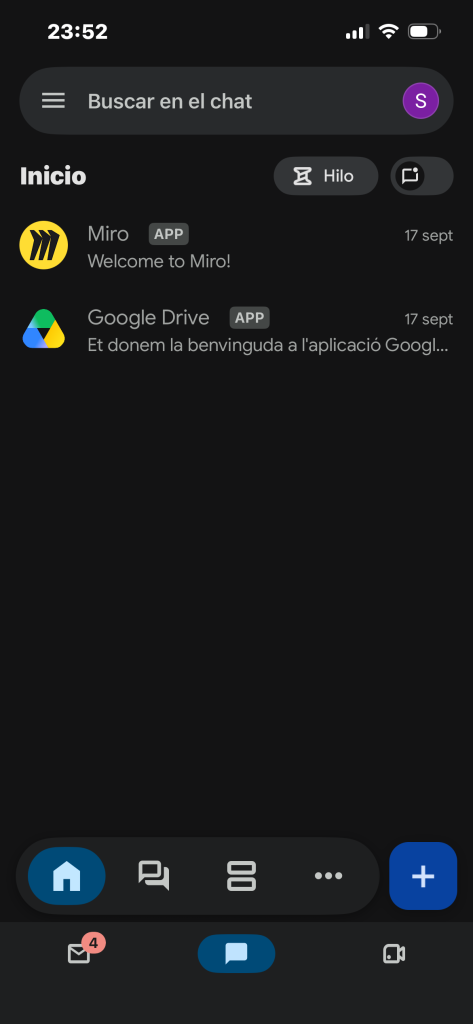
You can use the xat directly within the Gmail application or use the app independently.
Option 1: Activate the Xat dins of the Gmail App itself (More convenient)
Open the Gmail app on your mobile phone.
Touch the menu of the three horizontal lines (☰) to the upper left corner.
Scroll down and enter Settings.
Tap on the specific email address you want to configure.
In the General section, near the Xat option or Show the Xat and Espais tabs.
Check or activate the corresponding box.
The application is restarted shortly and you will see that at the bottom of Gmail new icons appear: Email, Xat, Spaces and Meetings (Meet).
Option 2: Use the Dedicated Applications
Go to Google Play Store (Android) or App Store (iOS).
Download the applications independent of Google Xat and Google Meet.
To open them for the first time, select the Google account that you will have previously configured on the phone.
Part 3: Checking Notifications
To make sure you instantly receive notices of new emails and xat errors:
Go to Phone Settings > Applications.
Select Gmail (or Google Xat).
Enter the Notifications apartment.
Ensure that the switch allows notifications to be activated and that the battery status mode does not restrict them according to the plan.